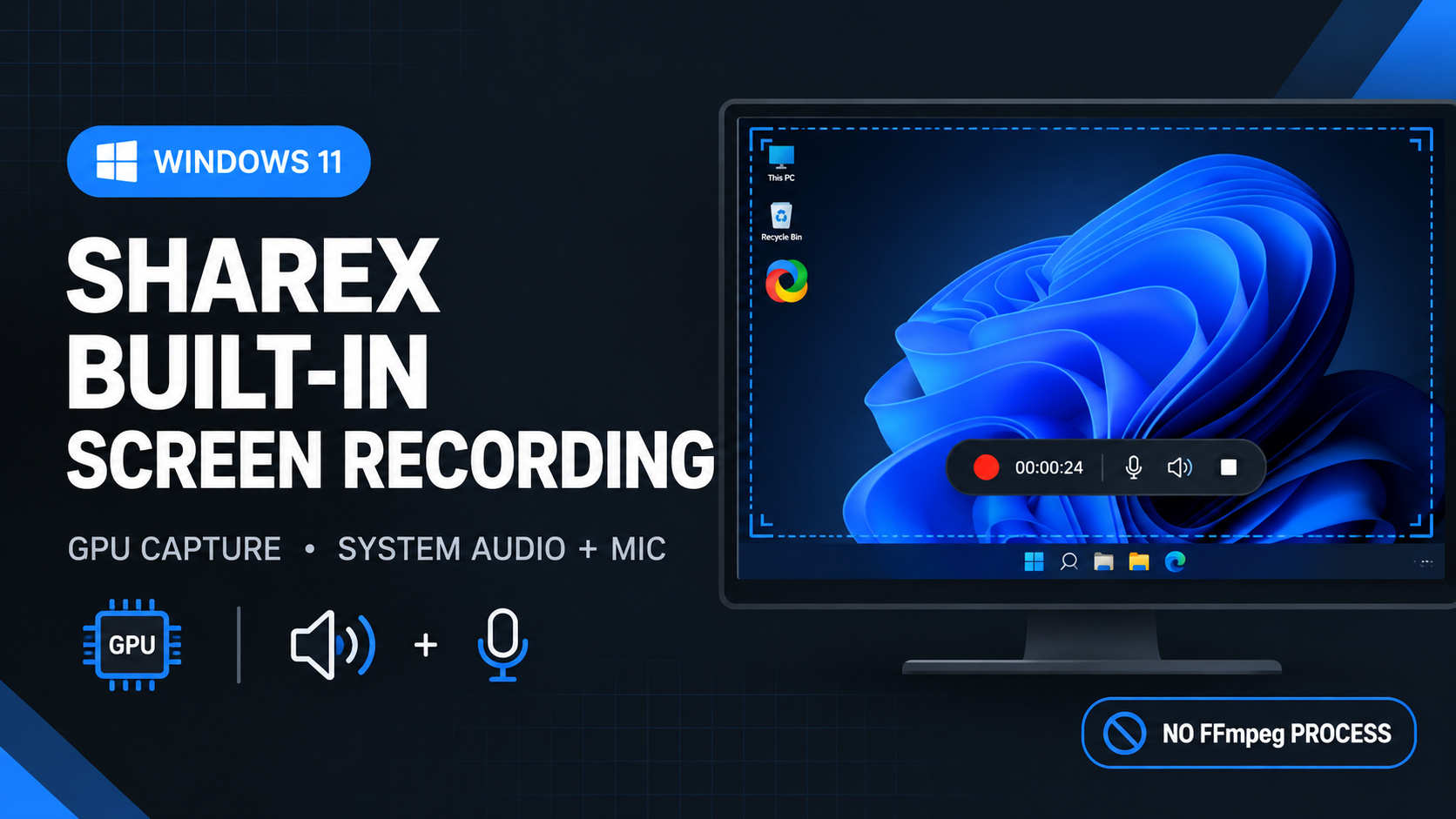
ShareX, the free and open-source screen capture tool for Windows, announced on X on October 6 that it now supports built-in screen recording on Windows 11. According to the post, the recorder uses GPU capture and encoding, can record system audio and the microphone at the same time, and does not need an FFmpeg process or third-party audio capture tools. ShareX says it is designed for faster startup and lower CPU usage, a claim we have not measured. The post does not say which build includes the feature. The latest stable release on ShareX's changelog is 21.0.0 from July 3, 2026, and its entry does not mention built-in recording, so the practical way to try it is the dev build channel, covered below.
What ShareX Says Is New
The post makes four claims: built-in recording on Windows 11, GPU capture and encoding, system audio and microphone recorded simultaneously, and no FFmpeg process or third-party audio tools. GPU recording is not new to ShareX by itself. Version 16.0.0, from March 2024, added Desktop Duplication API capture to the FFmpeg-based recorder, and the changelog recommended pairing it with NVIDIA's NVENC encoder so frames can stay on the GPU. What the new announcement describes is the same kind of GPU path without a separate FFmpeg process in the middle.
The post is short and leaves several practical questions open. It does not list output formats or codecs, and it does not say whether the new recorder replaces the FFmpeg-based one or sits beside it. It also does not say whether Windows 10 is supported, whether GIF recording or pausing works in the new recorder, or whether system audio and microphone end up on one track or two. ShareX's changelog says the app requires Windows 10 64-bit or newer since version 18.0.0, but the new recorder is described only for Windows 11.
How to Install the Dev Build
ShareX's dev builds page describes a short process using the app's own updater. If you already use ShareX, these are the steps.
- Export your settings first. In Application settings, open the Settings tab and use Export. ShareX's changelog says to back up this way instead of copying the Documents\ShareX folder, because uploader passwords are encrypted with Windows DPAPI.
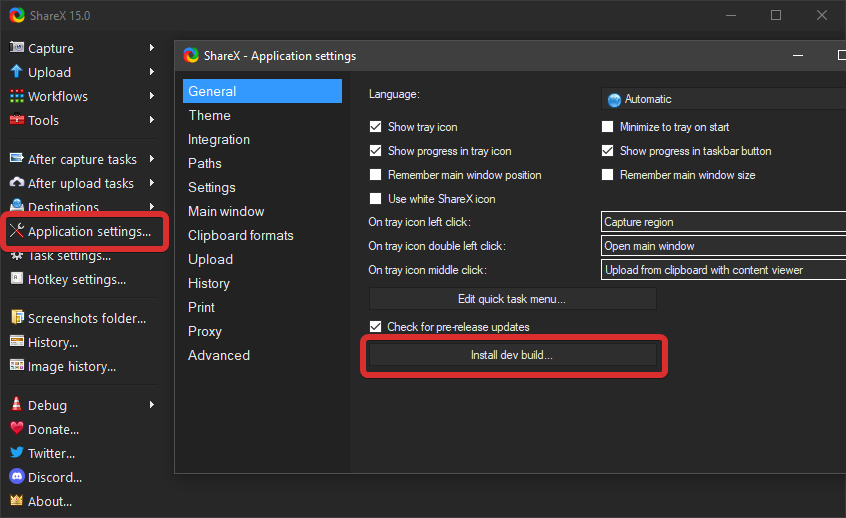
- Open ShareX and click "Application settings" in the left sidebar of the main window.
- On the General tab, click "Install dev build." ShareX's page says this starts the auto-update process, and its changelog says the build is downloaded from the ShareX DevBuilds repository on GitHub.
If you do not have ShareX installed, ShareX's page points to the latest dev build on the ShareX DevBuilds releases page on GitHub. The release lists installers, portable zips, Microsoft Store packages, and ARM64 builds, and gives a SHA256 checksum for each file. Comparing the checksum before you run anything is a cheap safeguard, and ShareX includes a Hash checker tool in its Tools menu for that. To go back to a stable release later, download it from getsharex.com/downloads.
Should You Run a Dev Build?
ShareX has long described dev builds as testing builds that can be unstable and are not recommended for production use. That advice comes from a 2017 changelog entry, but it still fits. This is a tool that touches your screen, your microphone, and your system audio, so we would try the new recorder after exporting your settings, or on a spare machine, and wait for a stable release if you rely on ShareX every day. Because the recorder takes the microphone and system audio together, it is also worth checking which apps hold microphone permission in Windows privacy settings after you install.
Where It Fits Among Our Tools
If you record your screen and want other privacy-friendly options, our directory lists Cap, an open-source Loom alternative with a self-hosted option, Screenity, a privacy-friendly recorder that runs as a Chrome extension, and Capptivo, a local-first recorder and editor for Windows, macOS, and Linux. For sharing, Zipline is listed as a self-hosted, ShareX-compatible upload server, which matters if you would rather send recordings to your own server than a third-party host. Finished recordings can be trimmed in open-source editors such as Shotcut, OpenShot, or OpenCut.
Sources
- ShareX on X, announcement of built-in screen recording on Windows 11, October 6, 2026: x.com/ShareX
- ShareX, "Dev builds": getsharex.com
- ShareX changelog: getsharex.com/changelog
- ShareX DevBuilds releases on GitHub: github.com/ShareX/DevBuilds
- MiniTool, "How to Screen Record with Audio Using ShareX": videoconvert.minitool.com
This article was written by DigitalEscapeTools based on ShareX's announcement and documentation, the tool listings on this site, and publicly available information at the time of publication.